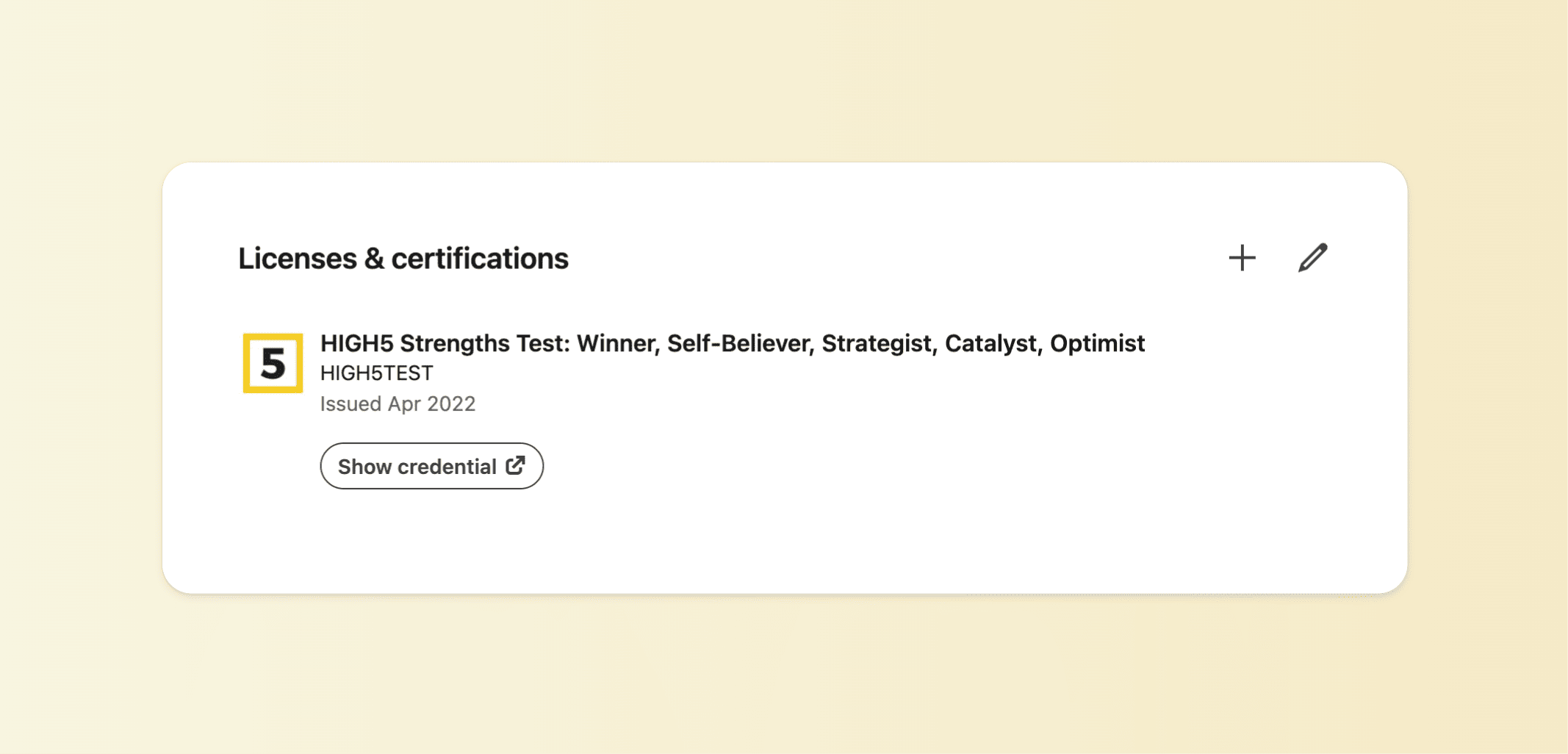
Now you can add your HIGH5 strengths to your LinkedIn profile to set yourself apart from the crowd and to attract the best opportunities. Here is an easy step-by-step guide on how to do it.

Step 1
If you have not taken the HIGH5 strengths test before, the first step is to complete the assessment. Head to test.high5test.com/registration and create an account. If you have already taken the test before, you can proceed with logging in to your existing account here: test.high5test.com/login
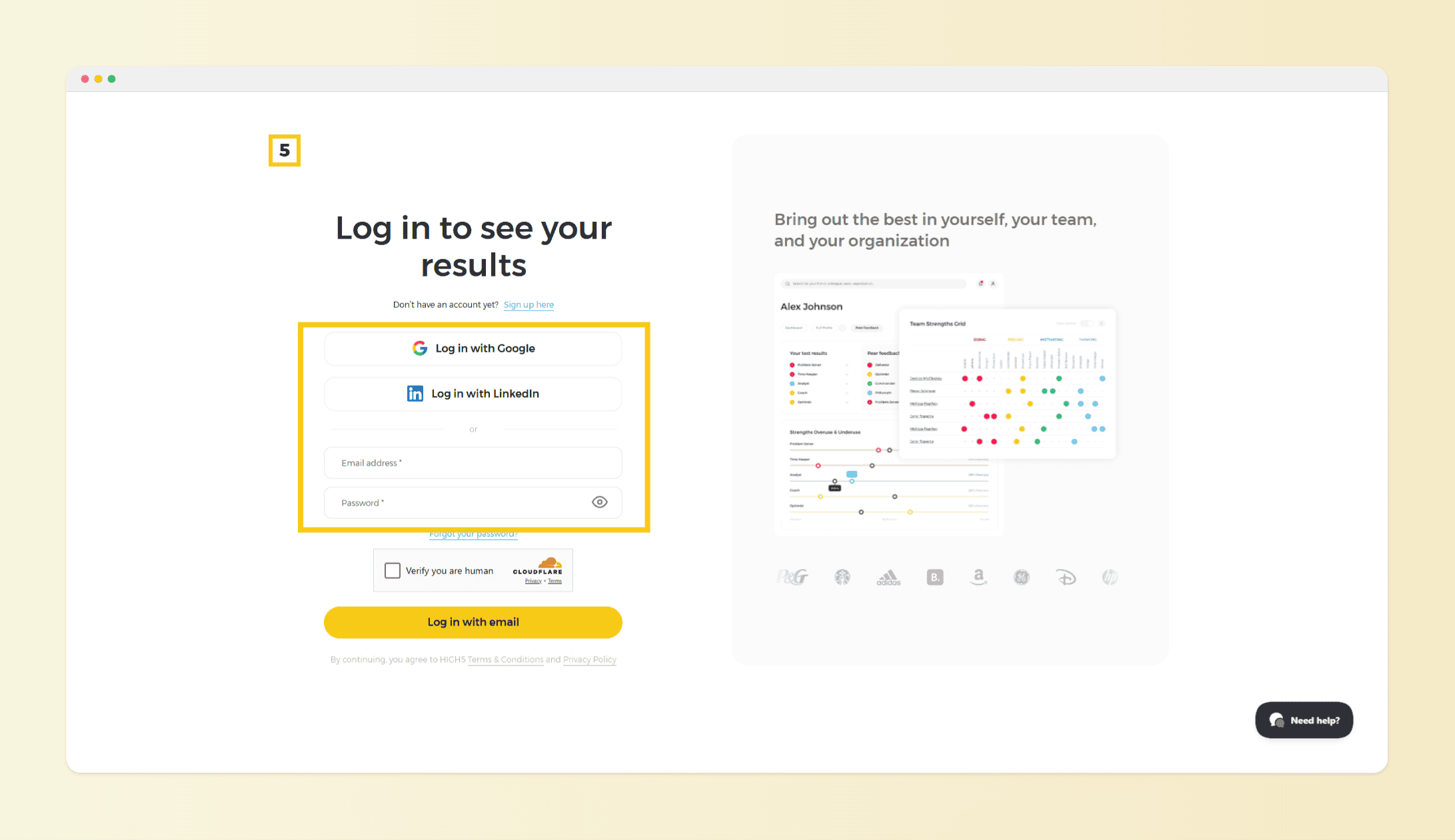
Step 2
In your Dashboard, click on the "Share" icon located next to your Strengths Profile.
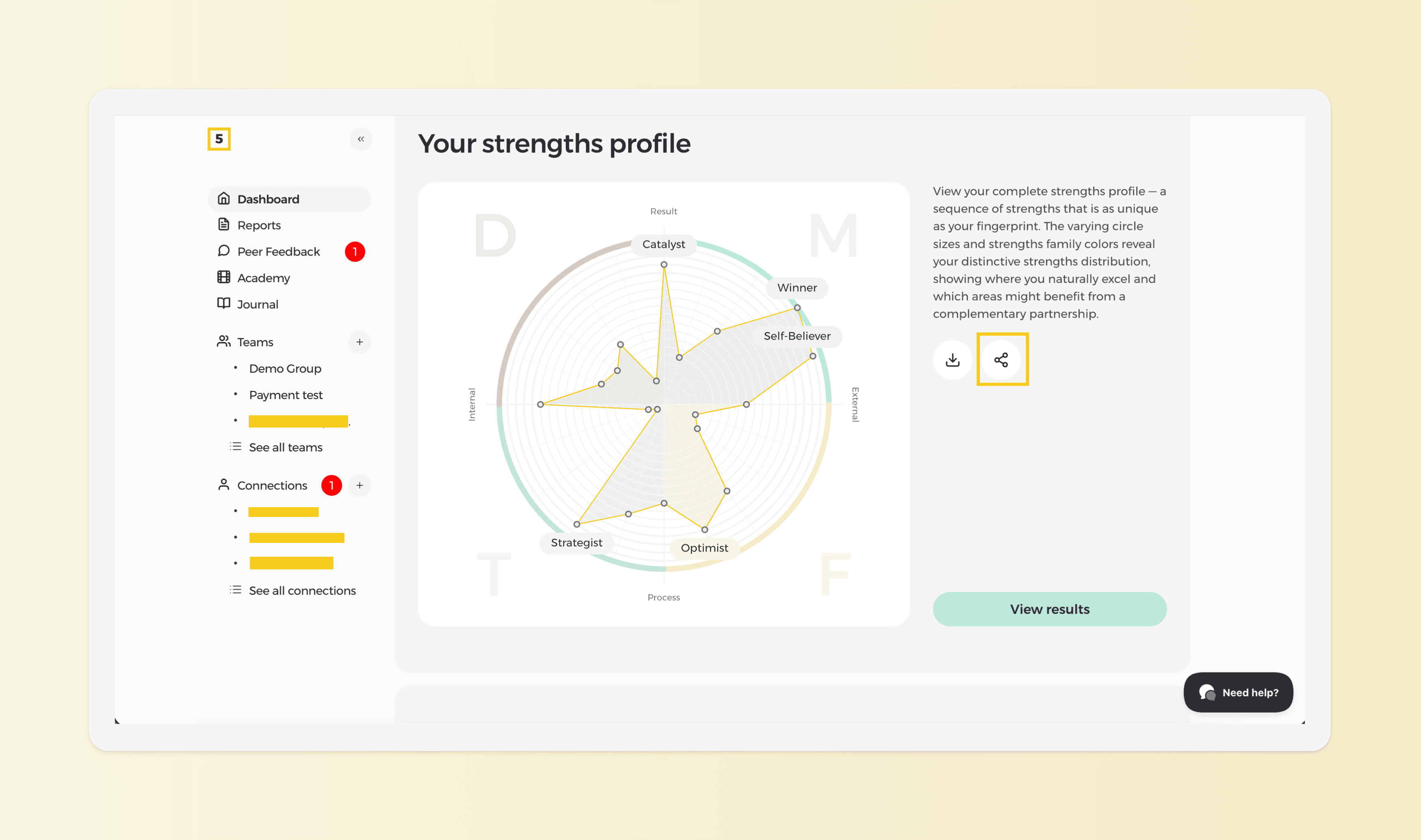
Step 3
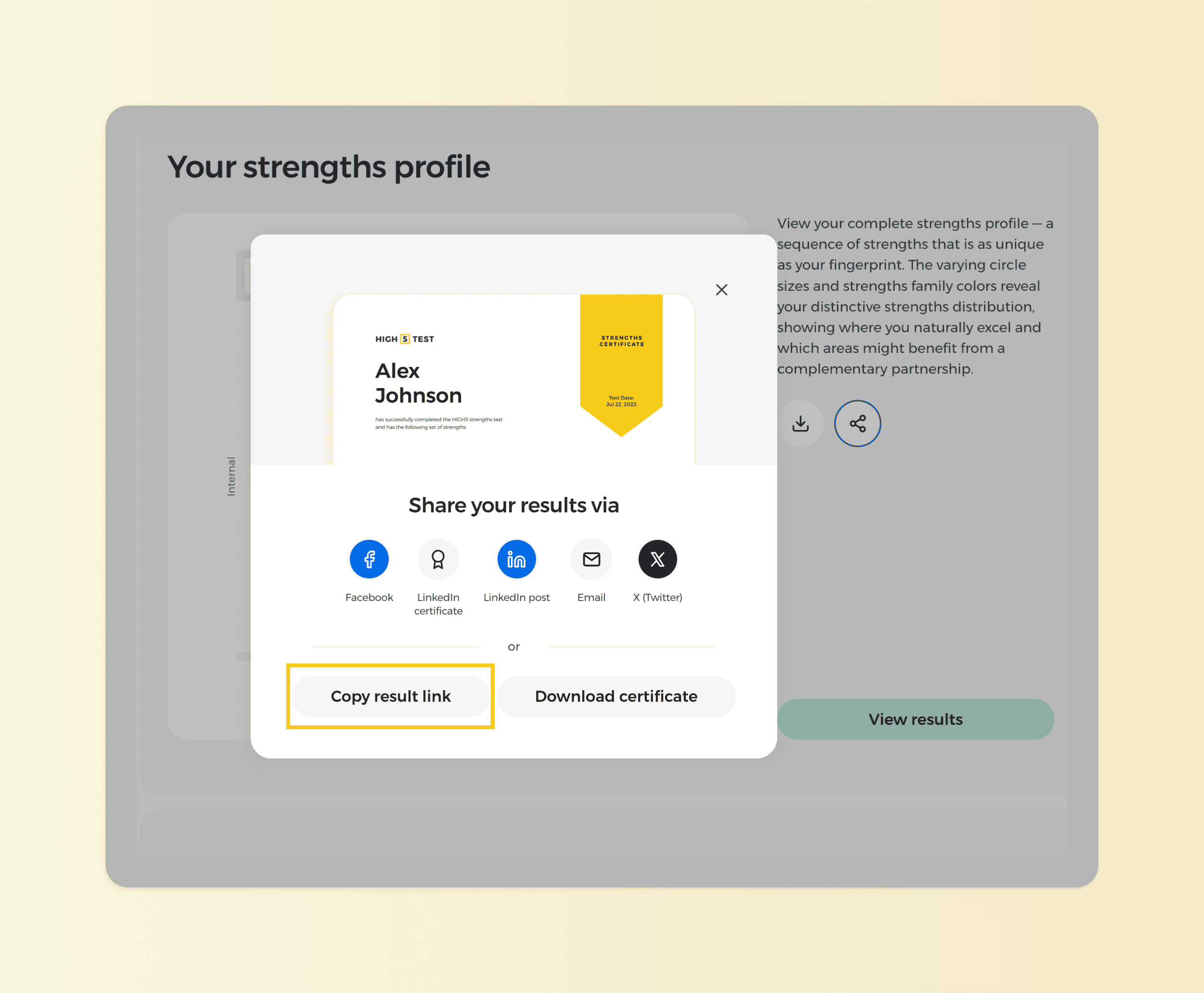
The 'Share your results’ popup will appear – at the bottom of it, please click on the "Copy Result Link" icon. This URL is an external link to your results. People opening it will not be asked to log in and will simply be able to check your results.
Please note: this URL is not the same as you see in your address bar of the browser. If you copy an address you see in the address bar, no one will be able to see your strengths when you share it externally. Therefore, please follow the instructions to copy the link as demonstrated.
Step 4
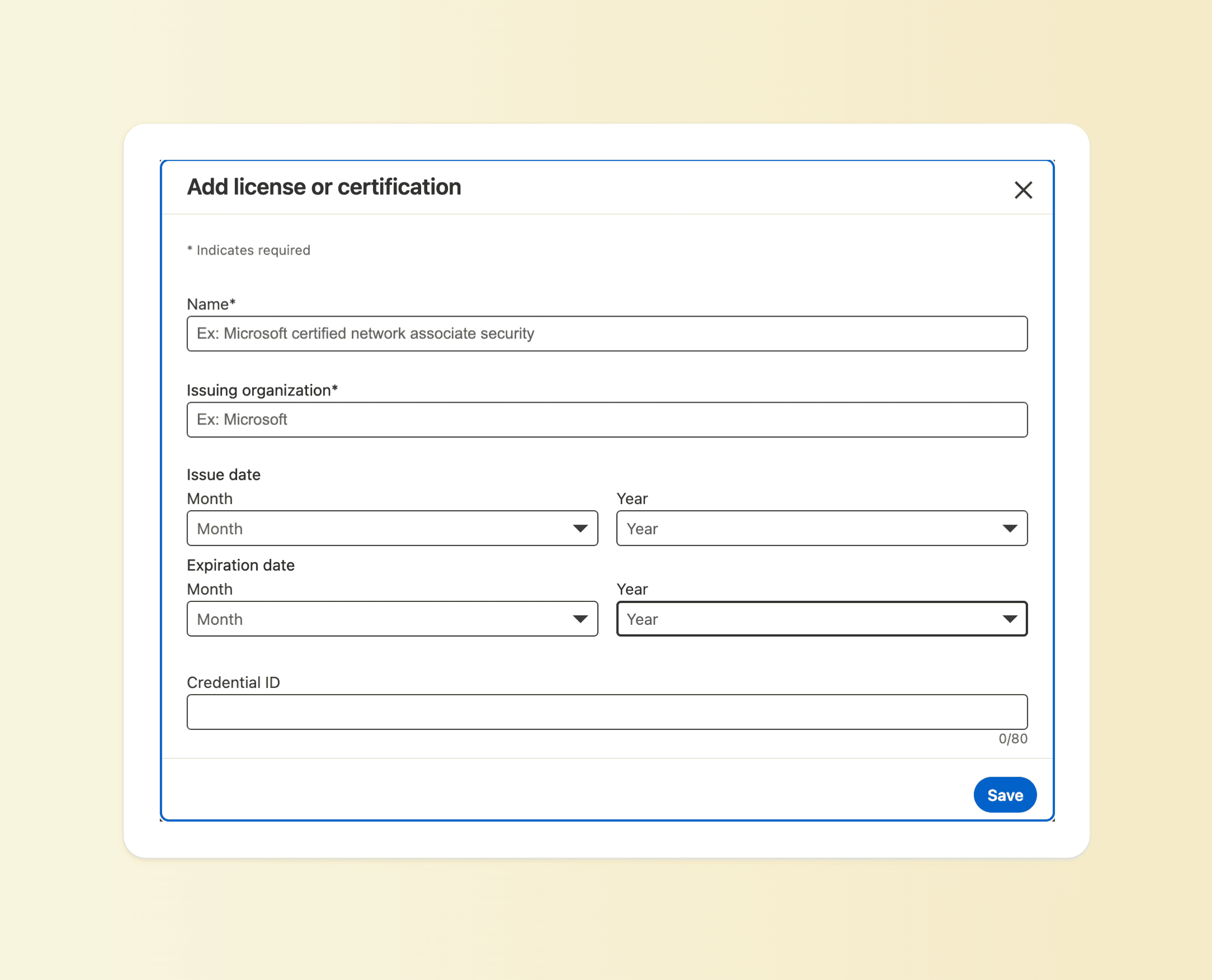
Now it is time to go to LinkedIn and add the certificate. Go to your LinkedIn profile, scroll to the ‘Certifications’ section, and click on adding a new certification.
Paste your unique Strengths certificate URL in the credential URL field. Add additional information following the format suggested below. You can also consult an example of the filled out form. Don’t forget to save the certificate in the end.
Name: HIGH5 Strengths Test: [Your Strength #1], [Your Strength #2], [Your Strength #3], [Your Strength #4], [Your Strength #5]
Issuing Organization: HIGH5TEST
Issue Date: Choose the month/year you took the test in
Expiration: Check the option “This certification does not expire”
Credential ID: No need to fill in
Credential URL: Paste the URL of your strengths certificate, which you copied in Step 3.
Result
Congratulations, you should see your strengths test displayed in your LinkedIn profile. Click on “Show Credential” to double-check that it is linked correctly.