
Sometimes, it becomes necessary to remove individuals from teams for various reasons. This guide will walk you through the steps to do so effectively.
NOTE: The Team Report covers up to 25 members. If you remove someone from the group, their spot becomes available for another member. You can add new members without additional payment, as long as your team stays within the 25-person limit.
Here are the steps to remove people from your group:
Step 1: Access Your "Teams" tab
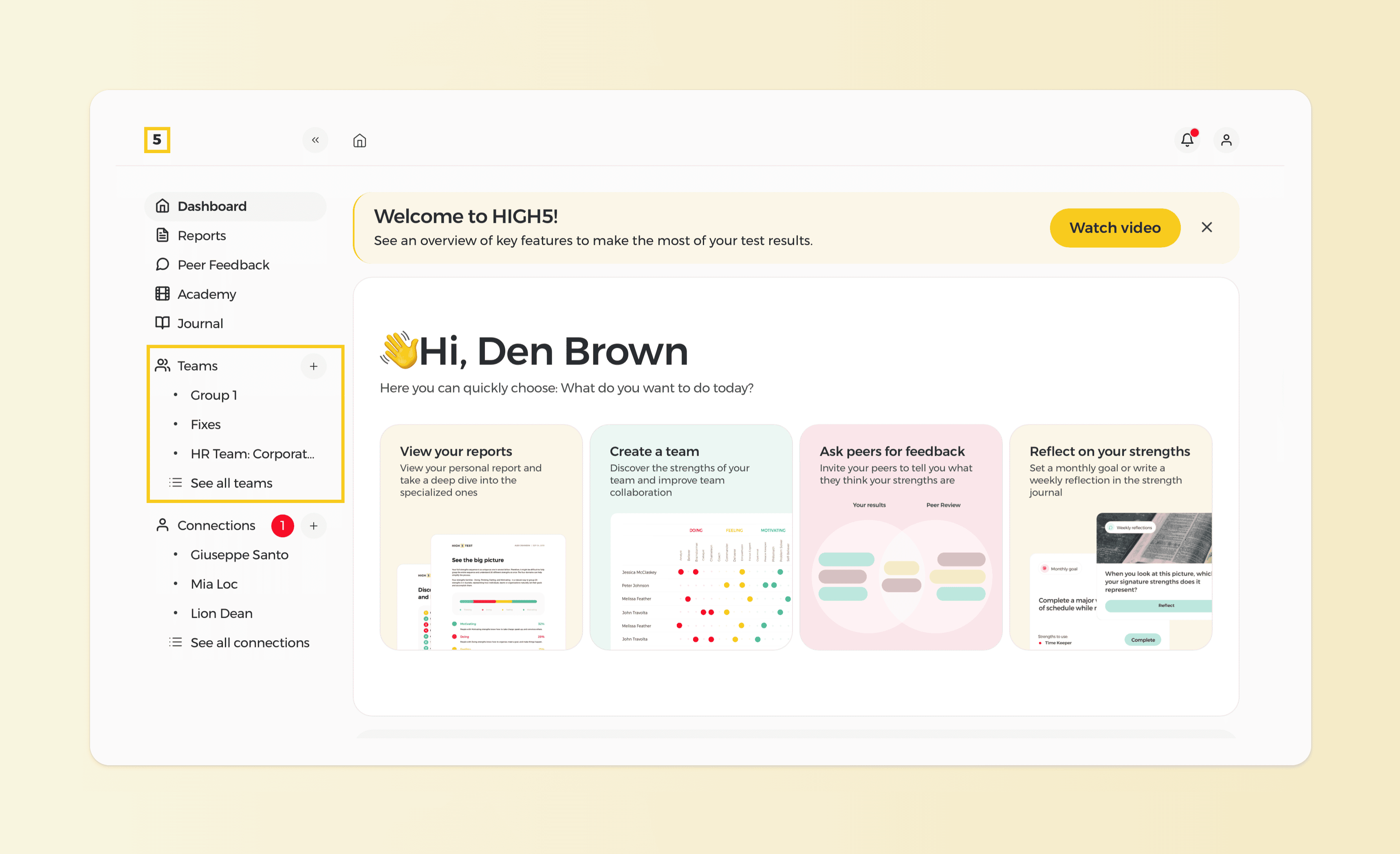
Log in to your HIGH5 account and go to the "Teams" section located in the left panel of your dashboard. Here, you'll see your most recently viewed groups, and if you want to see all the groups you've created, simply click on "Teams" or "See all teams" for the full list.
Step 2: Select the Group
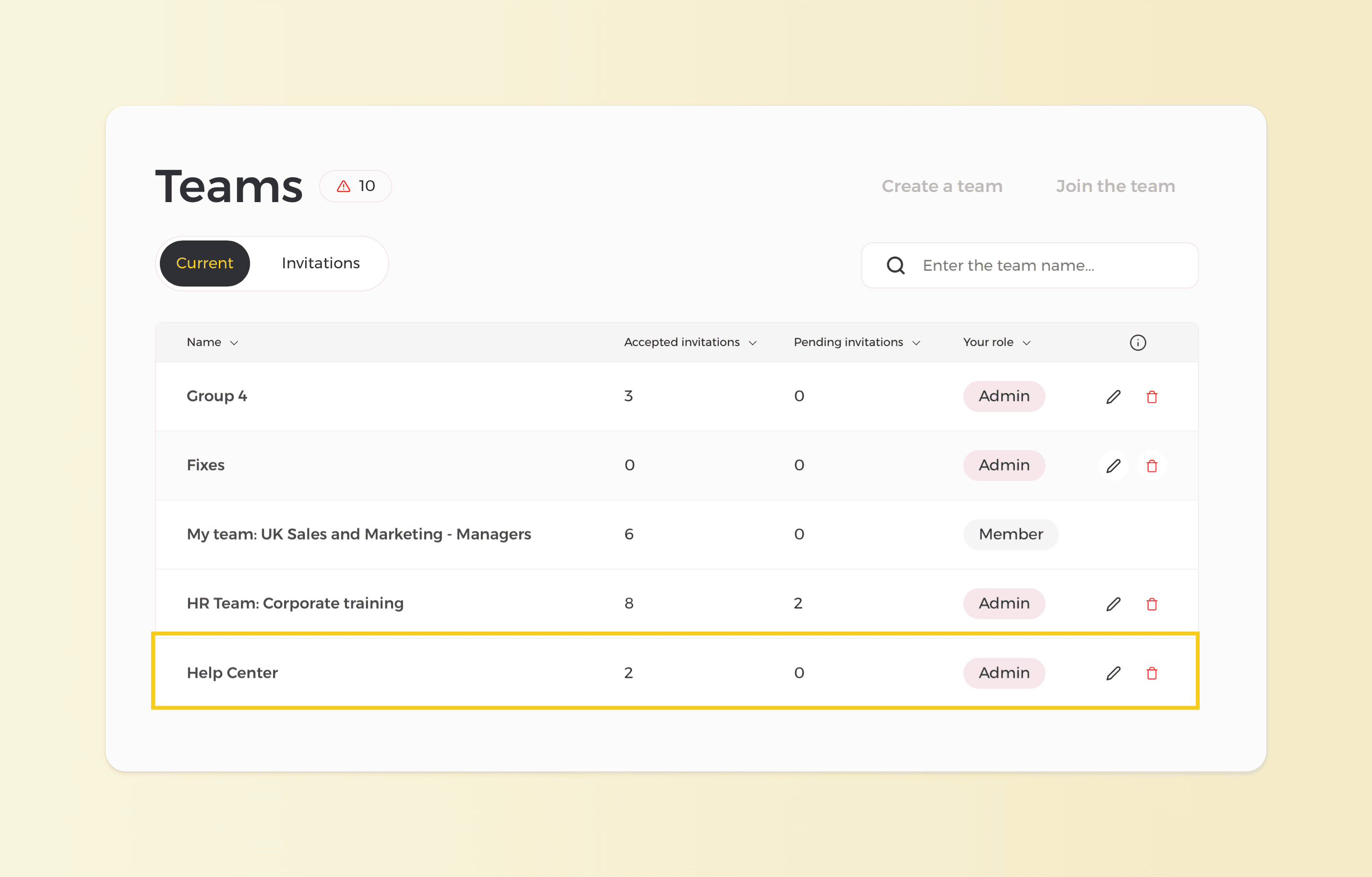
Choose the group from which you wish to remove a member.
Step 3: Go to the Members tab
Step 4: Remove member
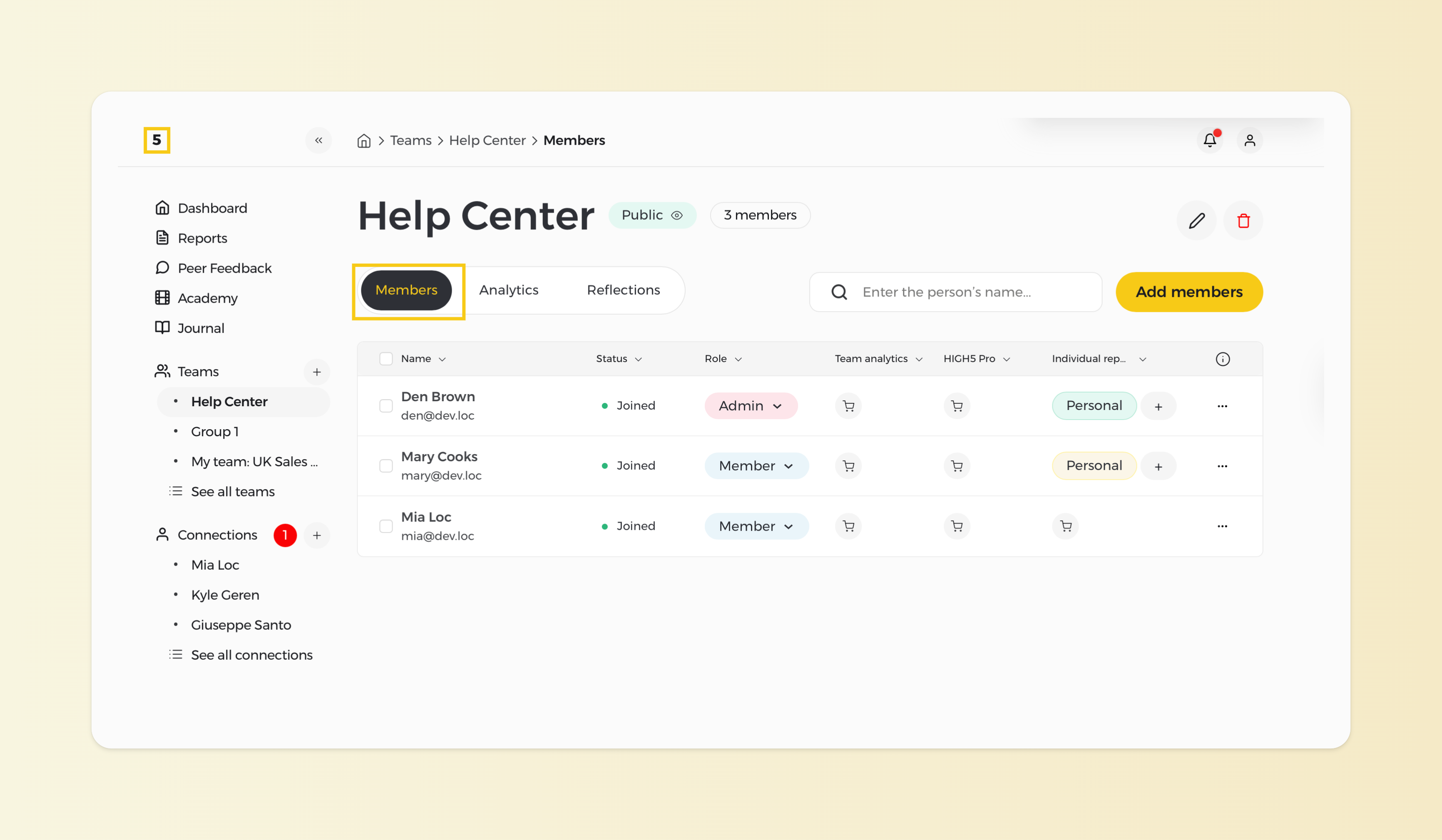
From the "Members" tab of a given team, identify the person you want to remove from the group. On the right side of the name, next to the role of a person, you should be ablele to see three dots. Click on that, followed by the removal command.

5. Confirm the removal of the person

After confirming the removal, double-check the group members list to ensure that the individual has been successfully removed from the group.