
After creating your team and inviting members, the next exciting phase is unlocking the team report for a deeper dive into your team's dynamics. In this guide, we'll walk you through the simple steps to unlock the team report. Should you encounter any challenges in the group creation process, feel free to click here for a relevant article.
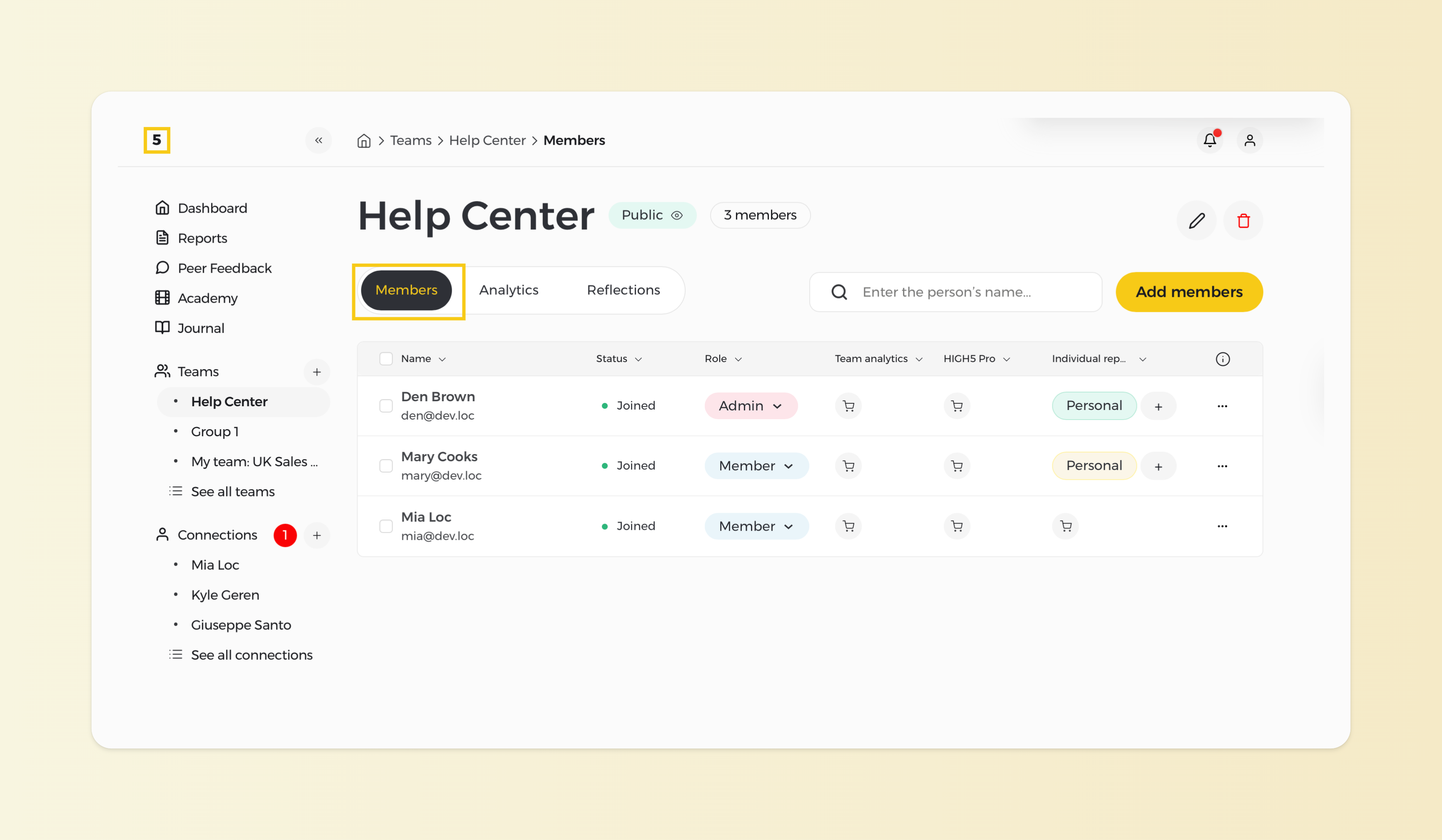
Step 1: Head to the "Members" section of a chosen team
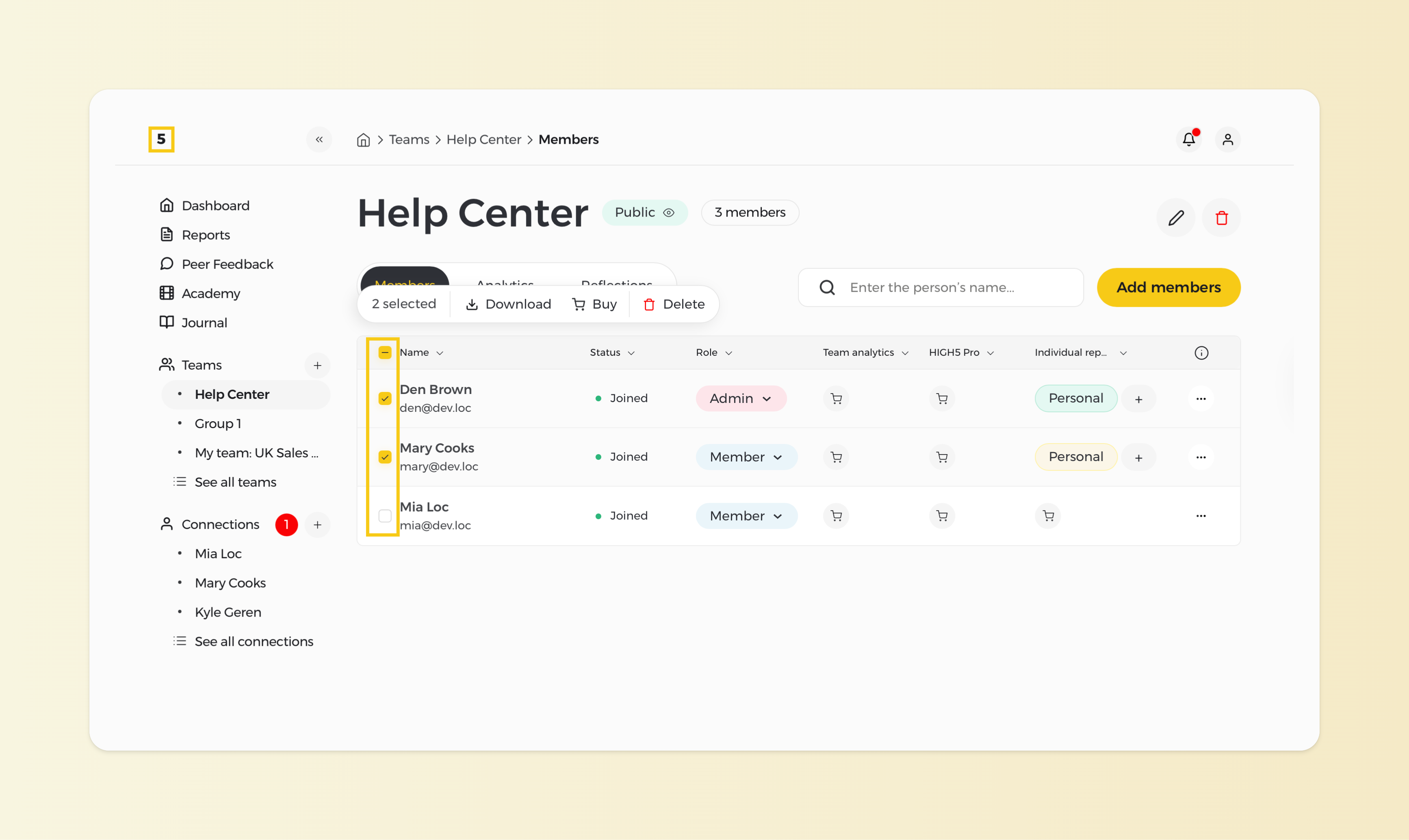
Step 2: Choose the teammates you need to purchase a report for
To purchase a report for a specific team member, check the box next to their name. For example, if you want to include 10 people in the team report, you will need to purchase a team report for each individual/member.
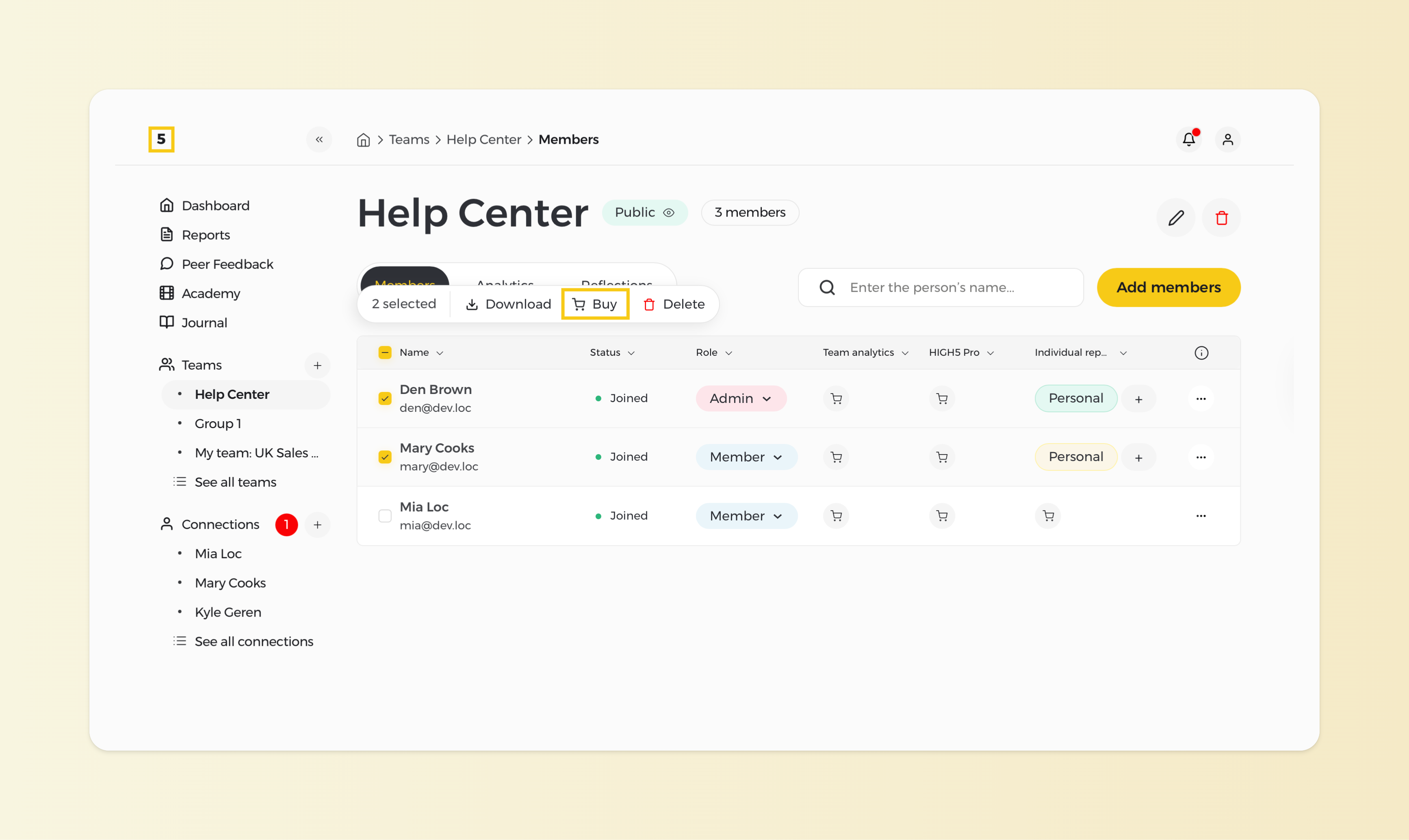
Step 3: Click on the "Buy" button
At the top of the member list, find and click on the "Buy" button to proceed with the purchase.
Step 4: Review the selected members and report/s
Depending on your need, choose which report type(s) you want to unlock for your teammates.
Select the required report/s from the options and proceed with the checkout.
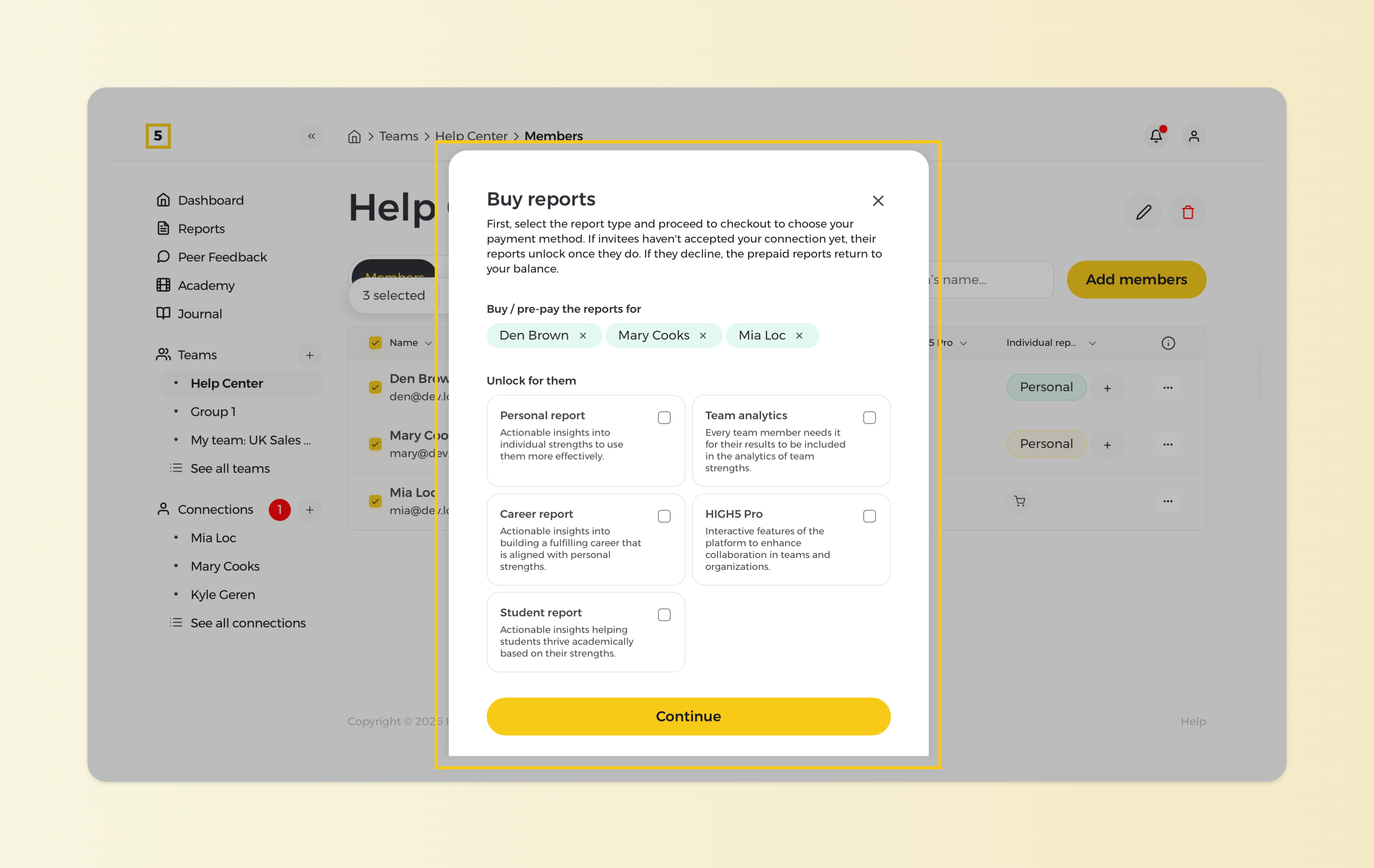
Please note that the team report does not include the individual report, and the individual report does not include the separate report for every team member. If you wish your team members to have their in-depth individual reports, you would need to purchase them in addition to the team report.
Step 5: Select your preferred payment method, enter the details, and click "Confirm"
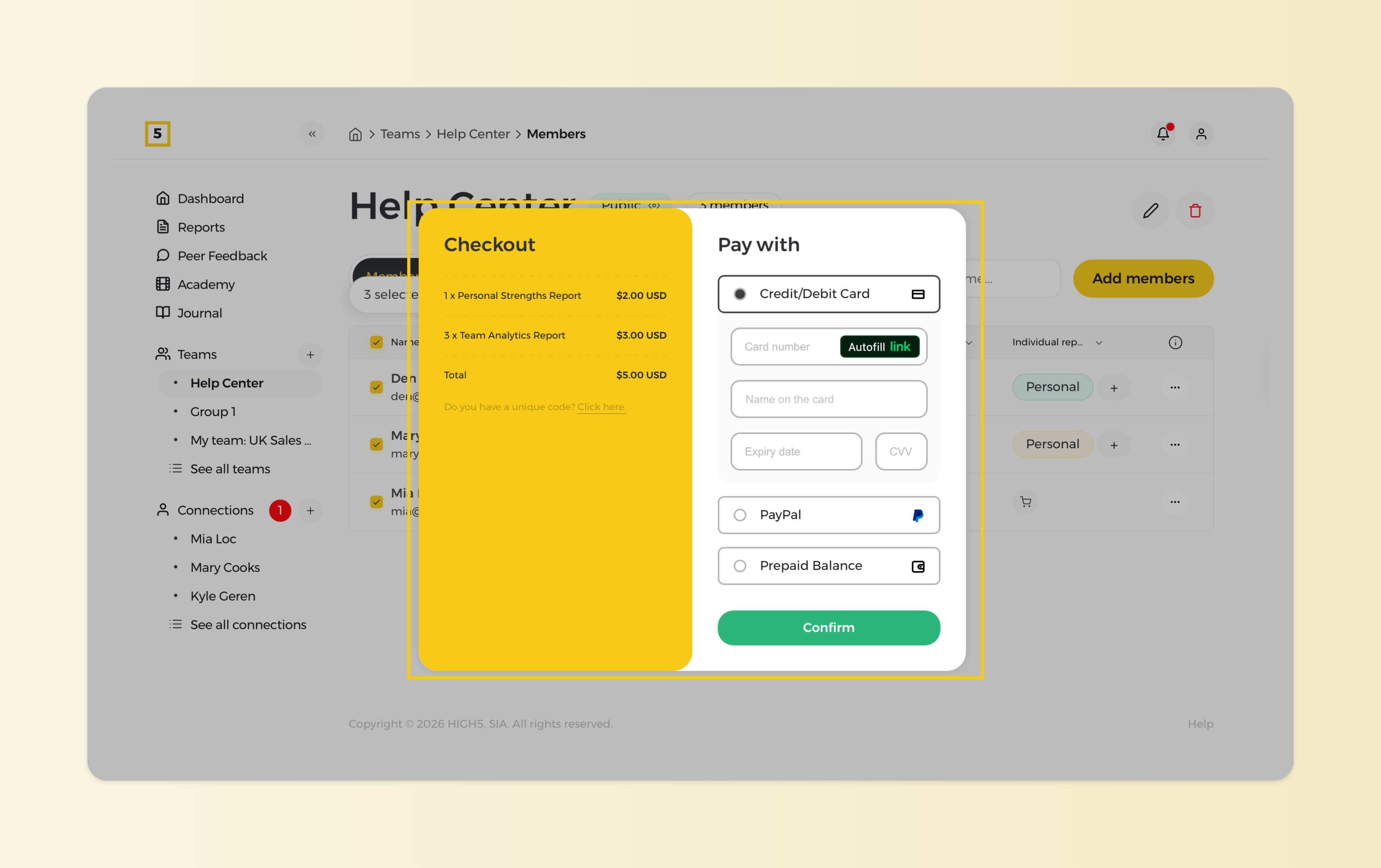
Once you are set on what you need to purchase proceed with the checkout. You can use a credit card, PayPal, or Prepay Balance to make the payment. Your report/s will be unlocked the second the payment is complete.