
Looking to manage your team more effectively? We've put together some easy-to-follow steps to help you add or remove members from your team on the HIGH5 platform.
Step 1: Navigate to the "Teams" tab and choose the group where you'd like to add or remove members.
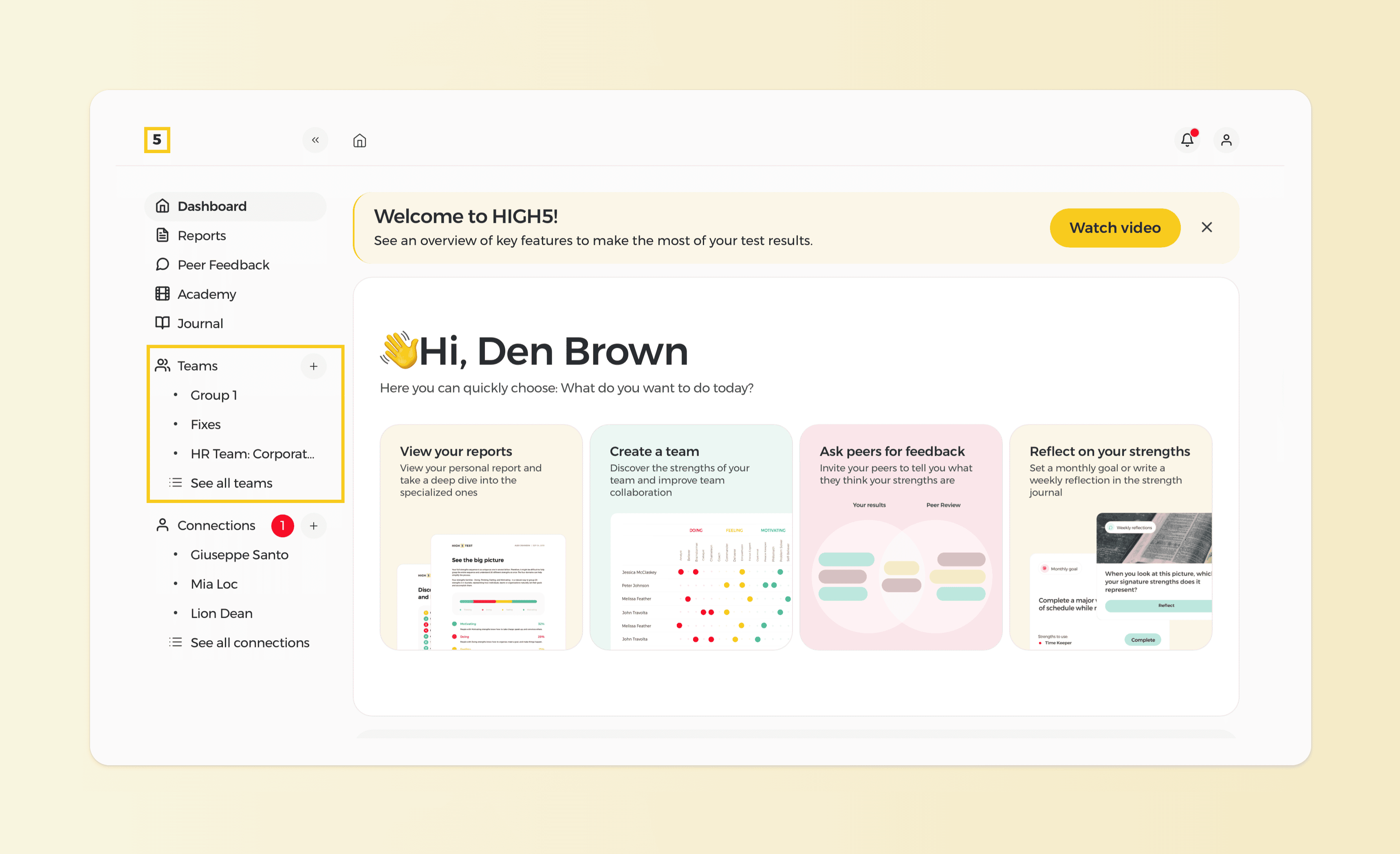
Route 1: To add members, click "Add Members"
Clicking on the "Add" button will initiate the process of adding new members.
Route 1a: Select an invite option

You'll see the different sharing methods. Feel free to select what works best for you and the team.

Method 1: Enter the email address/es to send an invite where the recipients can join by clicking the "Join the team" button or URL provided in the email.
Method 2: Send a group-specific link that members can paste into their browser to be added to the group.
Method 3: Use bulk invites by uploading a template or spreadsheet for multiple members.
Method 4: Share a group-specific code with the invitee, which they can apply from the Teams "Join the team" tab.
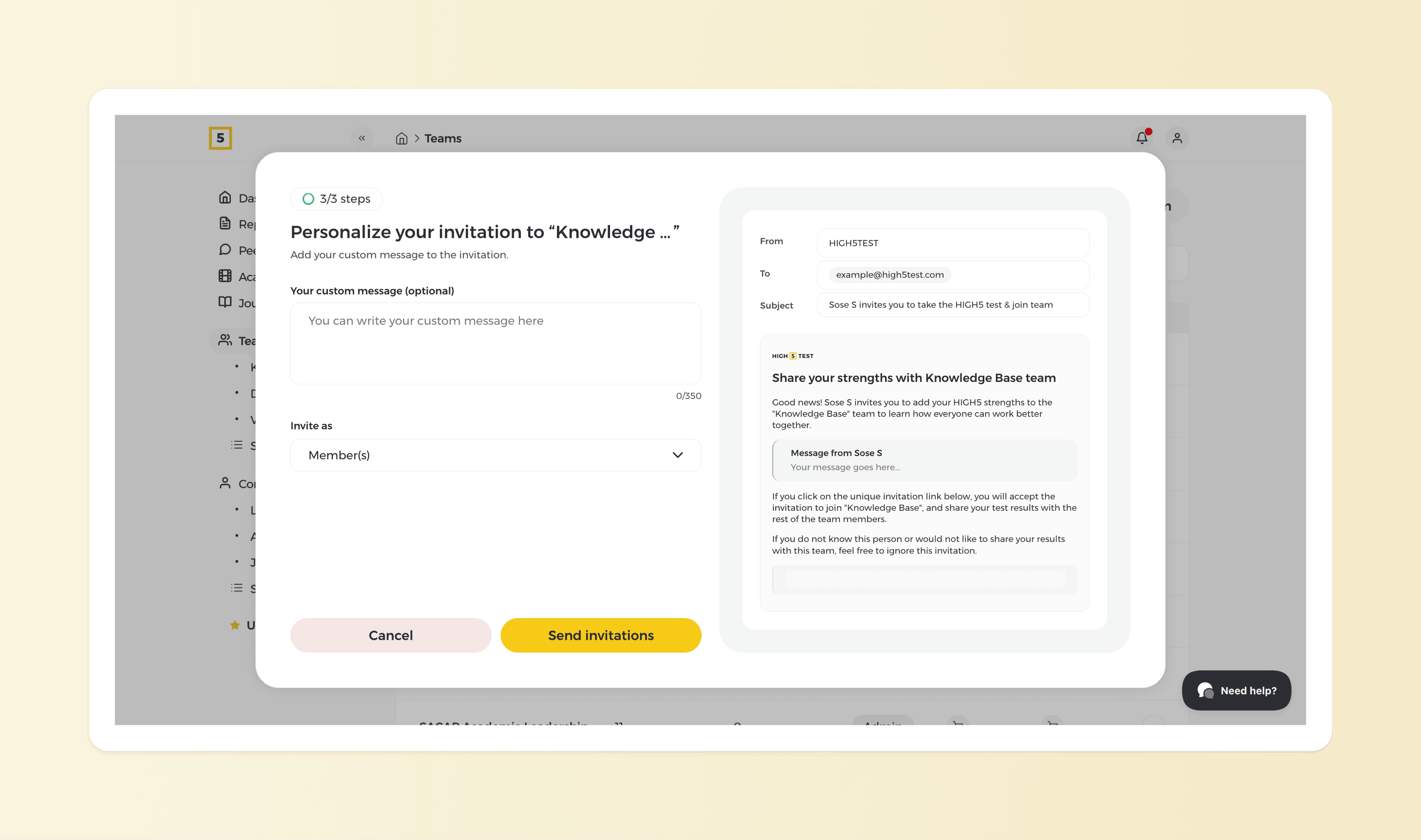
When inviting team members by email, HIGH5 automatically includes a default invitation message. You can also personalise the invitation by editing the message and adding your own instructions or introductory text before sending it.
Route 2: Removing people from your group

To remove a member from the group, simply select their name and click the three dots by their name and then the bin icon to delete them from the team.
Note: The Team Report covers up to 25 members. If you remove someone from the group, their spot becomes available for another member. You can add new members without additional payment, as long as your team stays within the 25-person limit.