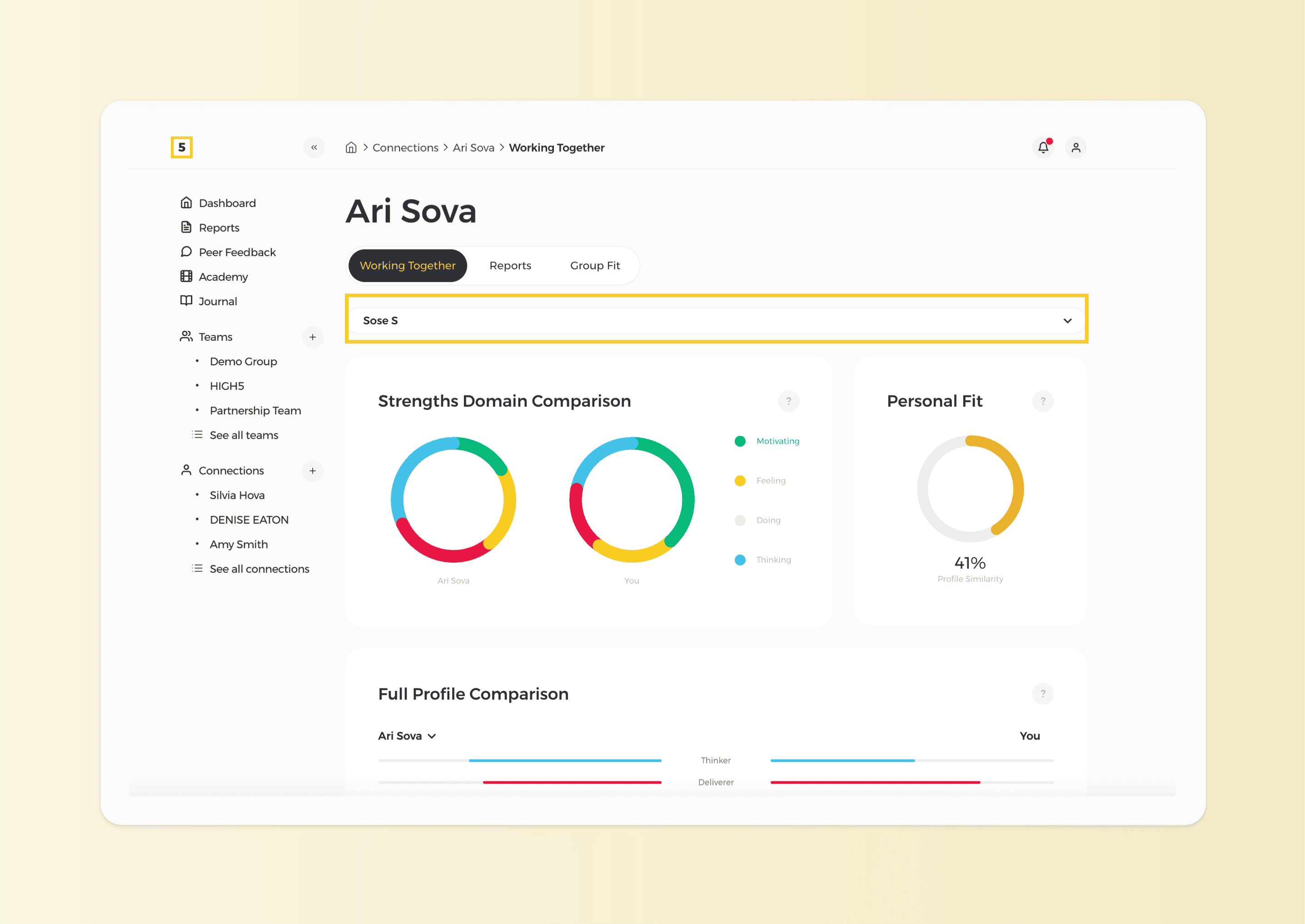
Disclaimer: Individual results comparison is available only with Full Platform Access, which is an additional purchase for team admins.
Steps to compare individual results:
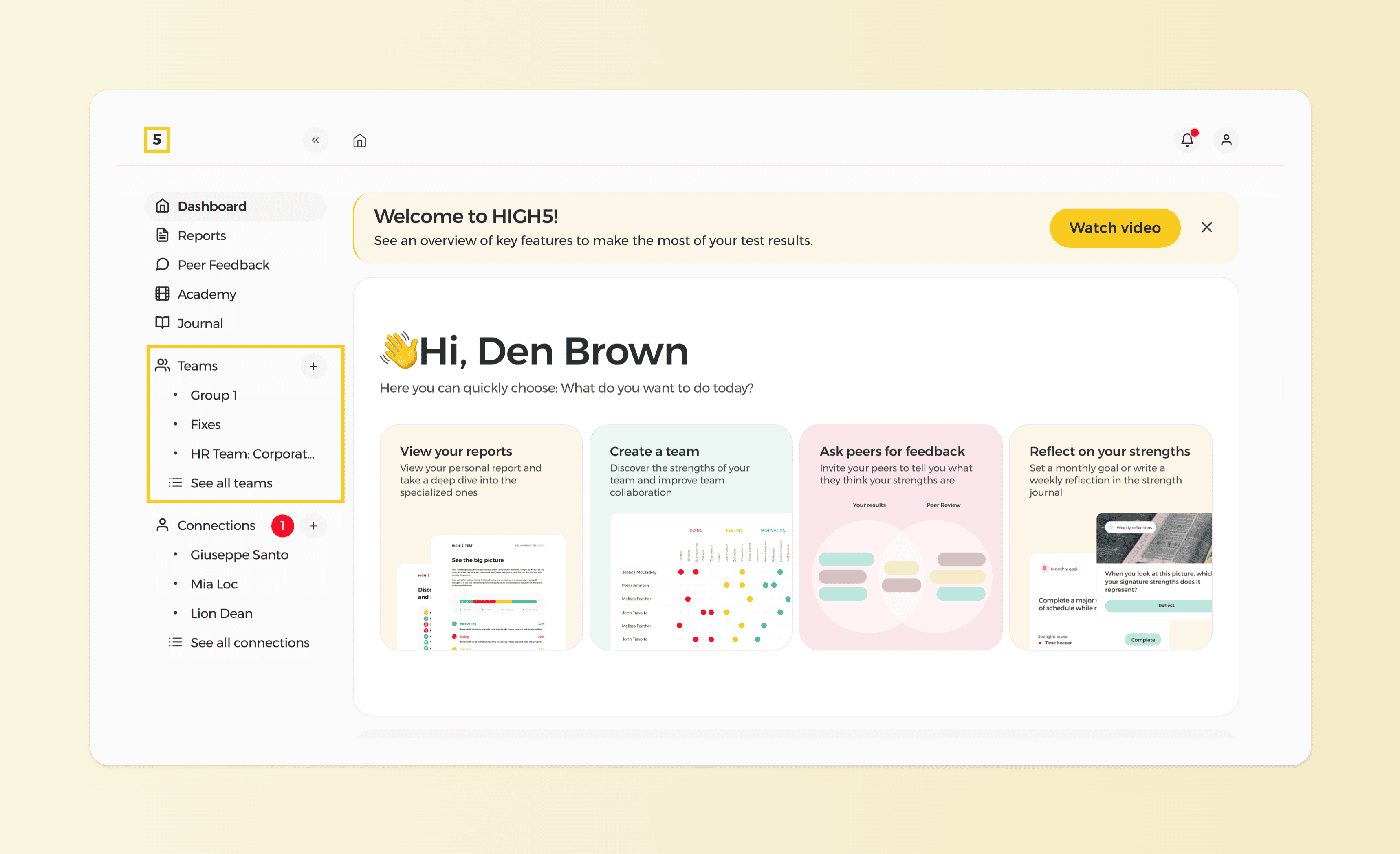
1. Go to the Teams section of your profile
Navigate to your profile and open the Teams section. This area lists all the teams you have access to, making it easy to select the group you want to explore.
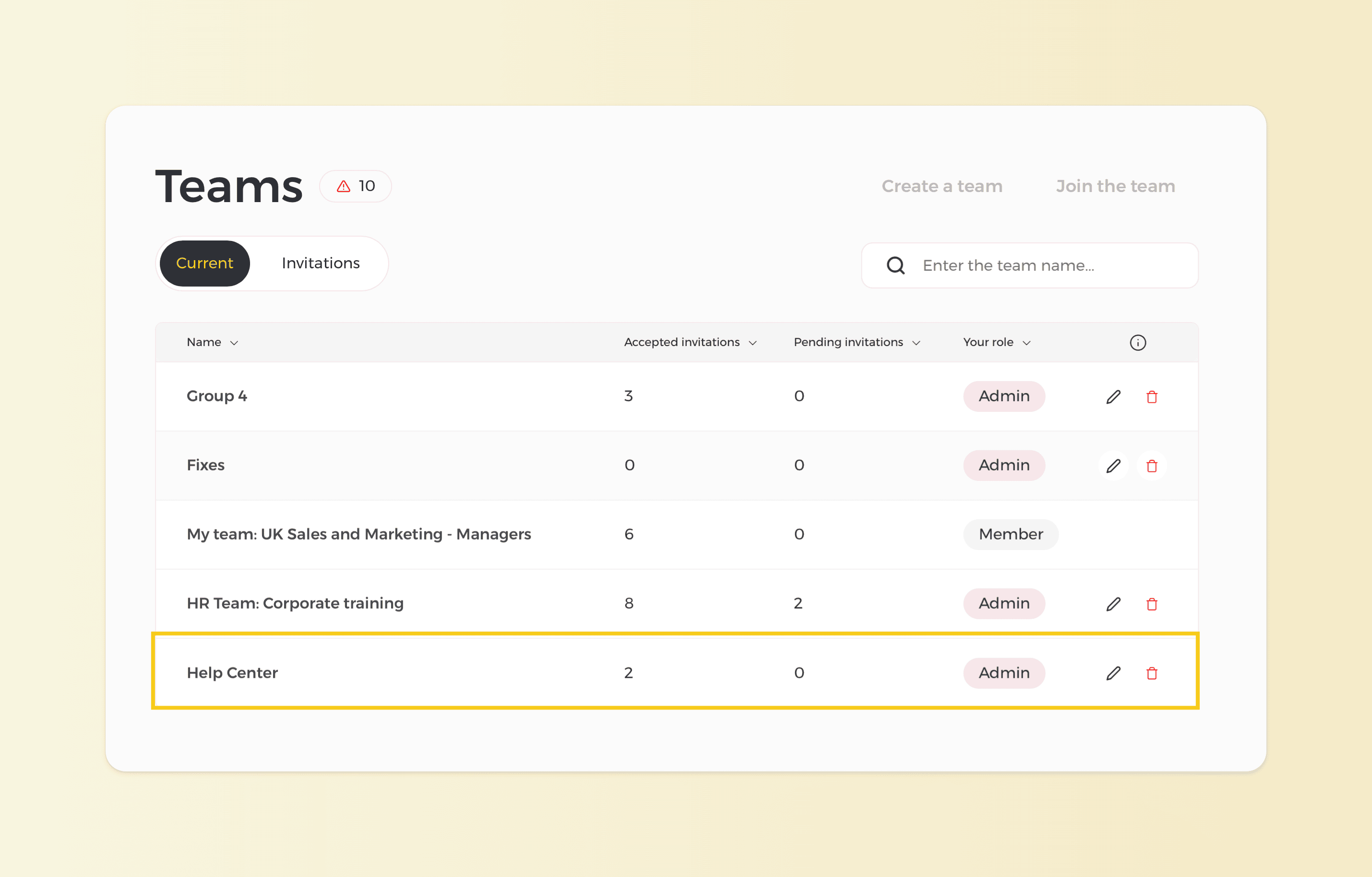
2. Select the team
Click on the team that includes the members whose results you want to compare.
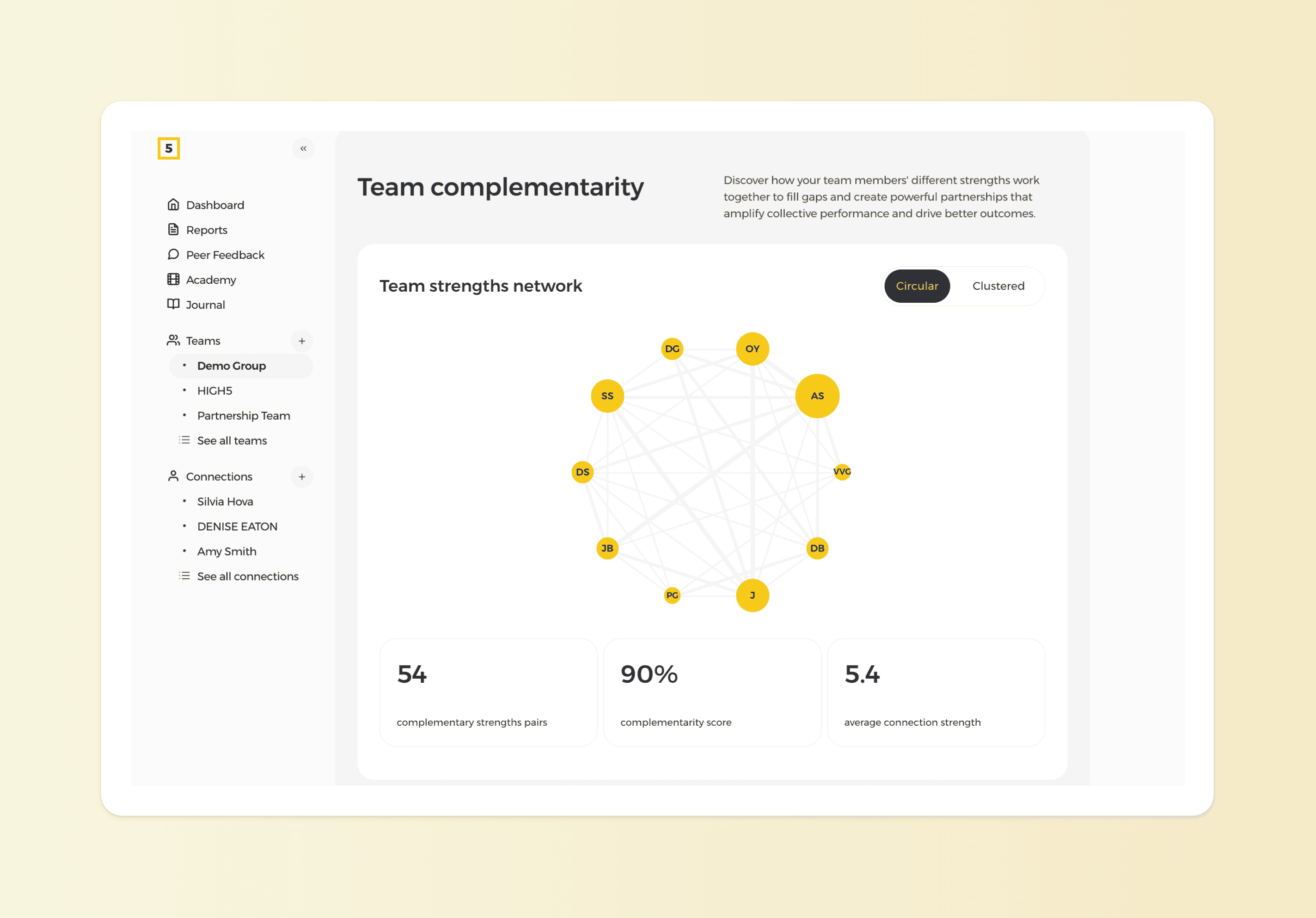
3. Scroll to the Team Complementarity graph
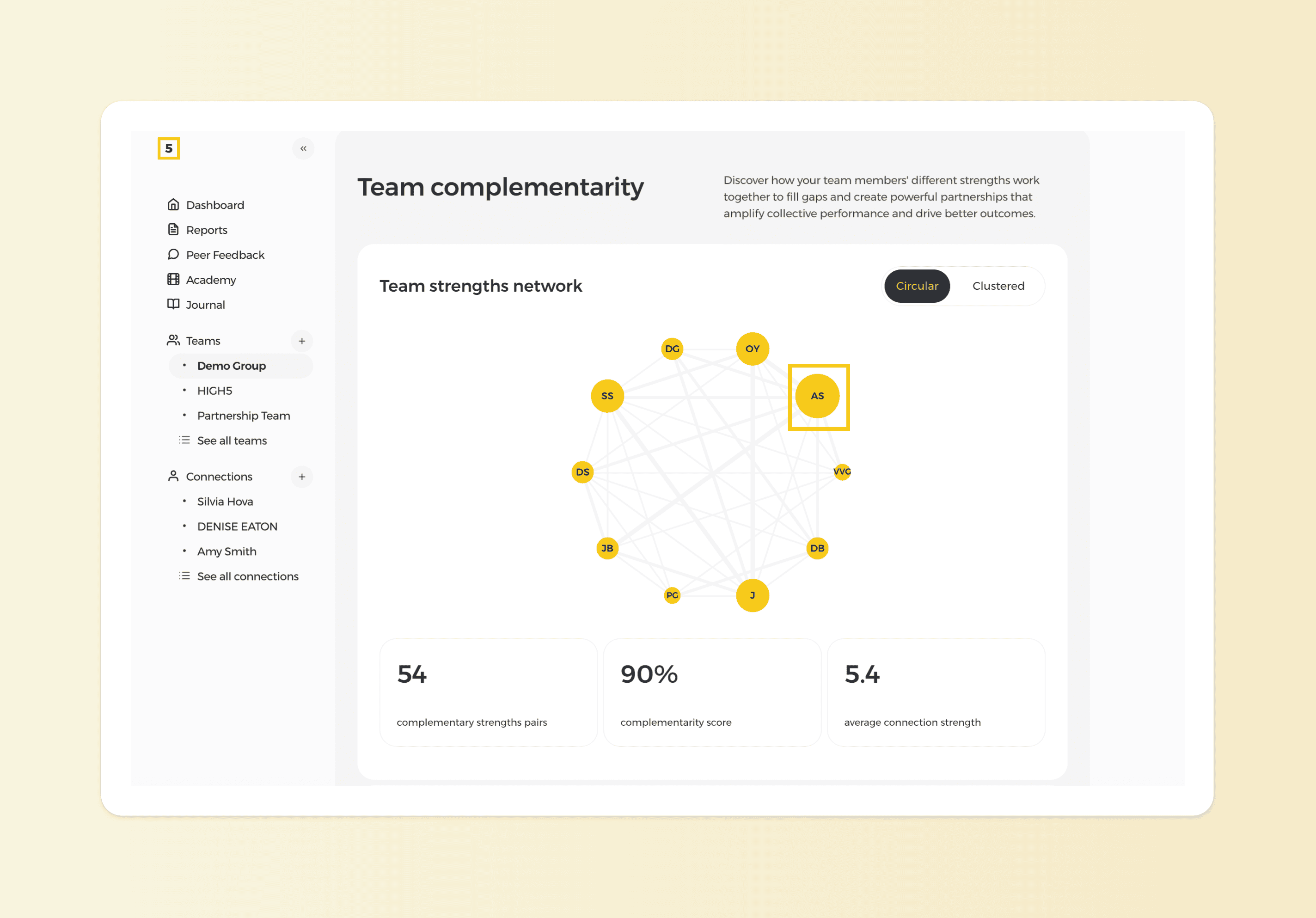
The Team Complementarity graph visually represents how well team members’ strengths complement each other. This is where you can start exploring individual comparisons.
4. Click on the member to compare
Select the team member whose results you want to analyze. Clicking on the yellow circle representing their name to open the comparison option.
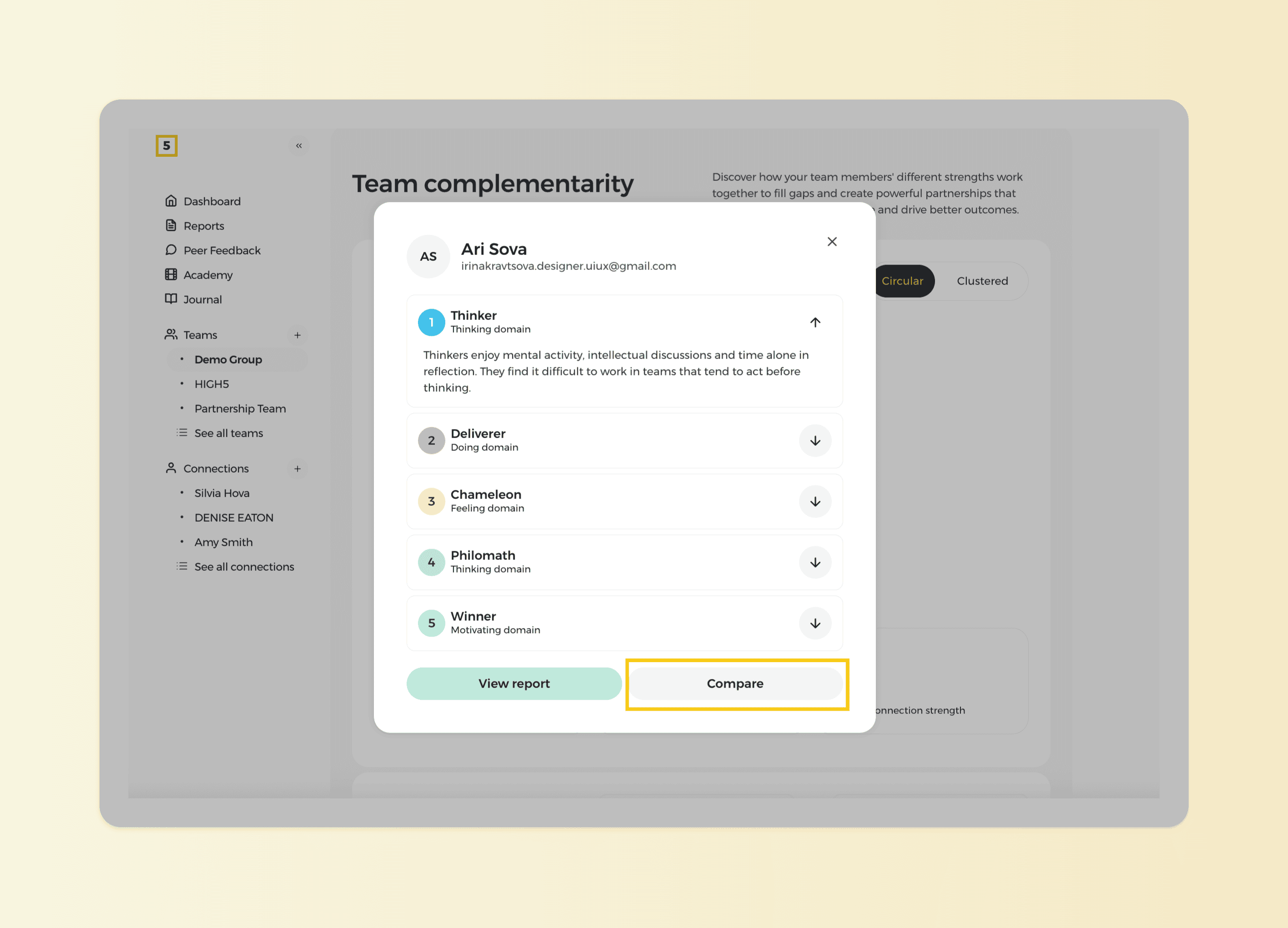
5. Select “Compare”
Note: By default, the comparison will be made between the selected member and your own results.
6. Use the dropdown menu to select other employees
If you want to compare the selected member with someone else, simply use the dropdown menu to pick other team members. The system will instantly show the new comparison.